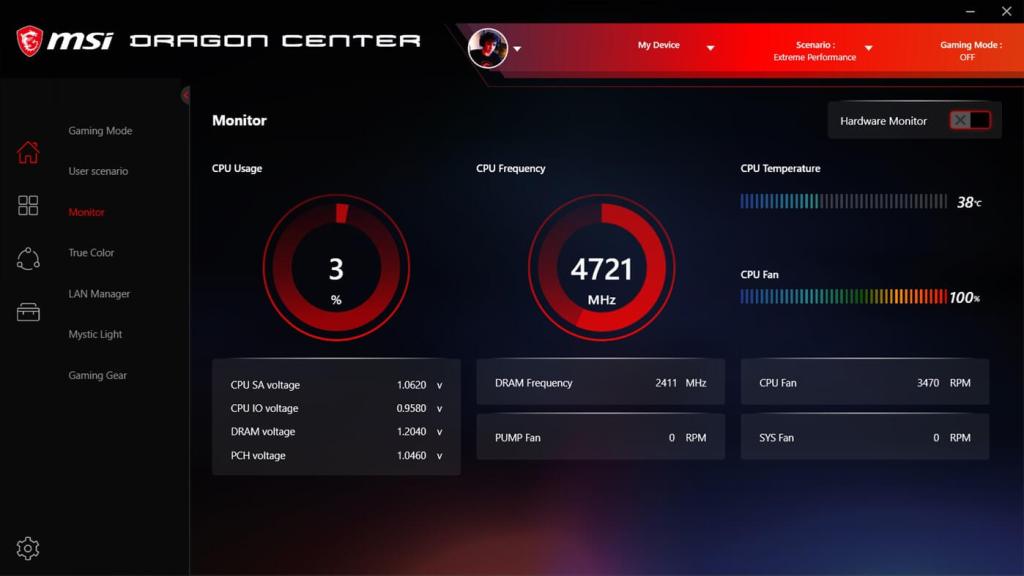
Are you tired of managing your system performance settings across different applications? Do you wish there was a one-stop solution that could provide centralized control over your MSI computer? Look no further than Dragon Center!
In this blog post, we’ll discuss everything you need to know about Dragon Center, from its features and benefits to a step-by-step guide on how to use it.
What is Dragon Center?
Dragon Center is a free software developed by MSI that provides centralized control over your system settings. It enhances user experience by allowing customization of performance modes, network priorities, and RGB lighting across all MSI products.
The software provides detailed system information and integrates a WiFi control center to optimize network performance. With hardware monitoring, it empowers users with accurate information about the device’s health and performance.
MSI introduced Dragon Center in 2017 to provide a one-stop solution for managing system performance and has since released several updates. The latest version 2.0.106.0 includes new features like Game Shift, Sound Tune, and VR.
Benefits and Advantages of Dragon Center
There are several benefits to using Dragon Center:
Customization of Performance Modes – Users can customize system performance modes based on their preference and workload requirements. The software includes Silent Mode, Gaming Mode, Creator Mode, and Battery Master to prolong and enhance the user experience.
RGB Lighting Control – Dragon Center provides complete control over RGB lighting that synchronizes with other MSI products. Users can choose from different lighting effects to enhance the visual experience.
WiFi Control Center – The software integrates a WiFi control center that optimizes network performance. Users can prioritize bandwidth usage based on their needs and improve internet connectivity.
Detailed System Information – Dragon Center offers detailed system information that empowers users with knowledge about their device health and performance. Users can monitor system temperature, fan speed, and usage stats.
User Experience – Dragon Center enhances user experience by providing an intuitive and user-friendly interface that is easy to navigate. The software offers quick access to frequently used settings and functionalities.
Step-by-Step Guide to Using Dragon Center
The installation process for Dragon Center is simple and straightforward. Follow the steps below to begin:
- Go to the MSI website and download the latest version of Dragon Center.
- Run the file and follow the installation prompts.
- Launch Dragon Center once installation is complete.
- The main user interface includes most used settings and functionalities. Users can dive deeper by exploring the different menus and sub-menus that enable a granular level of control.
Here’s a breakdown of some of the main features:
System Monitor – Users can monitor system usage for CPU, GPU, and Memory. The feature includes real-time statistics and graphs that offer a granular level of detail.
Mystic Light – The RGB lighting control center that provides a wide range of lighting effects to choose from. Users can customize lighting for products that support RGB.
Voice Wizard – A voice assistant that can take commands from users and execute complex tasks like launching games, changing performance modes, and more.
Audio – The software includes a sound tune feature that enhances audio quality for games or audio experiences.
Troubleshooting and FAQs
While Dragon Center is a powerful and reliable software, users may encounter some common issues while using it. Here are a few troubleshooting tips and solutions:
1. Clean Install:
- If Dragon Center is not working as expected or experiencing issues, a clean reinstall is often a good solution. Follow these steps:
- Uninstall Dragon Center from your computer through the Control Panel or Settings.
- Download the latest version of Dragon Center from the official MSI website.
- Install the software and restart your computer.
2. Wi-Fi Issues:
- If you are experiencing connectivity issues with your Wi-Fi network while using Dragon Center, try the following steps:
- Open Dragon Center and go to the WiFi control center.
- Click on the “Reset” button to reset the network adapter.
- Wait for a few moments, and then try reconnecting to your Wi-Fi network.
3. Compatibility Issues:
- Dragon Center is designed to work with MSI products and is regularly updated for compatibility with different devices and operating systems. However, compatibility issues can still arise. If you encounter compatibility problems, try the following solutions:
- Update Dragon Center to the latest version. Check the official MSI website for updates and compatibility information.
- Make sure your device meets the minimum system requirements for Dragon Center.
- Check for any conflicting software or drivers that may be causing compatibility issues. Disable or update them accordingly.
4. Performance Issues:
- In some cases, users may experience performance issues or system slowdowns related to Dragon Center. Here are a few troubleshooting steps to improve performance:
- Make sure your computer meets the minimum system requirements for Dragon Center. Insufficient hardware resources can impact performance.
- Close any unnecessary background applications that may be utilizing system resources.
- Update your graphics card drivers to the latest version. Outdated drivers can cause performance issues.
- Try disabling unnecessary features or services within Dragon Center that you do not utilize.
Frequently Asked Questions (FAQs)
Q1. Is Dragon Center compatible with non-MSI products?
- Dragon Center is primarily designed for MSI products and may not have full compatibility with non-MSI hardware. However, you can still try using it with other products to control RGB lighting or monitor system stats. Some features may not be available or may be limited.
Q2. Can I uninstall Dragon Center if I no longer need it?
- Yes, you can uninstall Dragon Center if you no longer need it. Go to the Control Panel or Settings on your computer, find Dragon Center, and choose the uninstall option. Keep in mind that uninstalling Dragon Center will remove its functionalities and control over MSI-specific features.
Q3. Does Dragon Center have a mobile app?
- Yes, Dragon Center has a mobile app available for both iOS and Android devices. The Dragon Center Mobile App allows users to remotely monitor system performance, control RGB lighting, and adjust settings on their MSI devices.
Q4. How often should I update Dragon Center?
- It’s recommended to keep Dragon Center updated to the latest version to ensure compatibility, stability, and access to the latest features and improvements. Check for updates regularly on the official MSI website or within the Dragon Center software itself.
Q5. Is Dragon Center resource-intensive?
- While Dragon Center itself does not consume a significant amount of system resources, certain features such as hardware monitoring and RGB lighting can impact performance to some extent. If you are experiencing performance issues, you can disable or adjust certain features within Dragon Center to reduce resource usage.
By following these troubleshooting tips and utilizing the FAQs, you can overcome common issues and make the most out of your Dragon Center software. If you encounter any further difficulties, reach out to MSI support for dedicated assistance.
Conclusion
In conclusion, Dragon Center is an extremely useful software that provides centralized control over your MSI computer. The software’s customization options, RGB lighting control, and WiFi control center make it stand-out in the market. If you’re looking for a way to manage your system settings and optimize performance, Dragon Center is a great option to explore.
 Dragon Center